
You Keep Publishing. Your Traffic Keeps Declining.
You've published 200 blog posts this year. Your organic traffic is down 15%. Something isn't working.
Here's what nobody tells you about content marketing: more content doesn't mean more traffic. In fact, for many websites, the opposite is true. Every weak article you publish dilutes your site's authority. Every thin page competes with your best content. Every outdated post tells Google your site might not be trustworthy.
I've audited dozens of sites where the fix wasn't "create more content." It was "delete 40% of what you have."
Content pruning, the practice of removing, consolidating, or updating underperforming pages, often delivers faster results than publishing new articles. One site I worked with deleted 127 blog posts and saw organic traffic increase 34% within three months. No new content. Just strategic removal.
In this guide, you'll learn how to run a content audit, identify which pages are hurting your SEO, and decide whether to prune, update, or leave content alone. You'll get a framework for making these decisions systematically, not based on gut feelings.
The sites winning at SEO in 2025 aren't the ones publishing the most. They're the ones with the cleanest, most focused content libraries.
What Is Content Pruning (And Why It Works)
Content pruning is the process of auditing your existing pages and removing, consolidating, or updating the ones that aren't performing. Think of it like gardening: you cut back dead branches so the healthy ones can grow stronger.
Why Underperforming Content Hurts Your SEO
Google evaluates your entire site, not just individual pages. When a significant portion of your content is thin, outdated, or redundant, it sends negative signals:
Crawl budget waste: Google has limited resources to crawl your site. Every time Googlebot spends time on a low-value page, that's time not spent discovering or re-crawling your best content. (This is especially critical if you've tried programmatic SEO and have thousands of pages competing for crawl attention.)
Quality dilution: If 60% of your pages get zero organic traffic, Google might question whether your site is a quality resource overall.
Keyword cannibalization: Multiple pages targeting similar keywords compete against each other. Instead of one strong page ranking well, you have three weak pages ranking poorly. (This is one of the most common keyword research mistakes and content pruning is often the fix. See our complete guide to finding and fixing keyword cannibalization.)
User experience problems: Visitors who land on outdated content bounce quickly. High bounce rates and low engagement signal to Google that your content isn't helpful.
The Math Behind Pruning
Here's a simplified example of how content pruning improves site performance:
| Metric | Before Pruning | After Pruning |
|---|---|---|
| Total pages | 500 | 300 |
| Pages with traffic | 150 (30%) | 200 (67%) |
| Average quality score | Low/Mixed | Higher |
| Crawl efficiency | Wasted on 350 dead pages | Focused on quality content |
| Site authority signals | Diluted | Concentrated |
When you remove the deadweight, your remaining content gets more attention from both Google and users.
How to Run a Content Audit
Before you delete anything, you need data. A proper seo content audit tells you exactly which pages are underperforming and why.
Step 1: Export Your Content Inventory
Start by creating a complete list of every indexable page on your site. You can get this from:
- Google Search Console: Export all pages from the Coverage report (see our guide on mining GSC for keyword opportunities for more on using this data)
- Your sitemap: Download your XML sitemap
- Crawl tools: Use Screaming Frog or Sitebulb to crawl your site
Create a spreadsheet with these columns:
| Column | What It Shows |
|---|---|
| URL | Page address |
| Title | Page title |
| Publish Date | When it was created |
| Last Updated | When it was last modified |
| Word Count | Content length |
| Organic Sessions (12 months) | Traffic from Google Analytics |
| Impressions (12 months) | Visibility from Search Console |
| Clicks (12 months) | Actual visits from Search Console |
| Backlinks | External links pointing to the page |
Step 2: Identify Problem Pages
Filter your spreadsheet to find pages that match these warning signs:
Zero-traffic pages: Any page with fewer than 10 organic sessions in 12 months is a candidate for review. If Google isn't sending any traffic, the page isn't providing value.
Thin content: Pages under 300 words rarely provide enough depth to rank or help users. Flag these for expansion or removal.
Outdated content: Anything published more than 2-3 years ago with no updates may contain incorrect information. Check for outdated statistics, broken links, or references to old tools and practices.
Duplicate or similar content: Look for pages targeting the same keyword or answering the same question. These create internal competition.
Step 3: Categorize Each Page
For every problem page, assign one of four actions:
| Action | When to Use | Example |
|---|---|---|
| Keep | Page performs well, no changes needed | Top 20% of traffic drivers |
| Update | Good topic, needs refreshed content | Outdated statistics, old screenshots |
| Consolidate | Multiple weak pages on same topic | Merge 3 thin posts into 1 comprehensive guide |
| Prune | No value, not worth updating | Zero traffic, no backlinks, irrelevant topic |
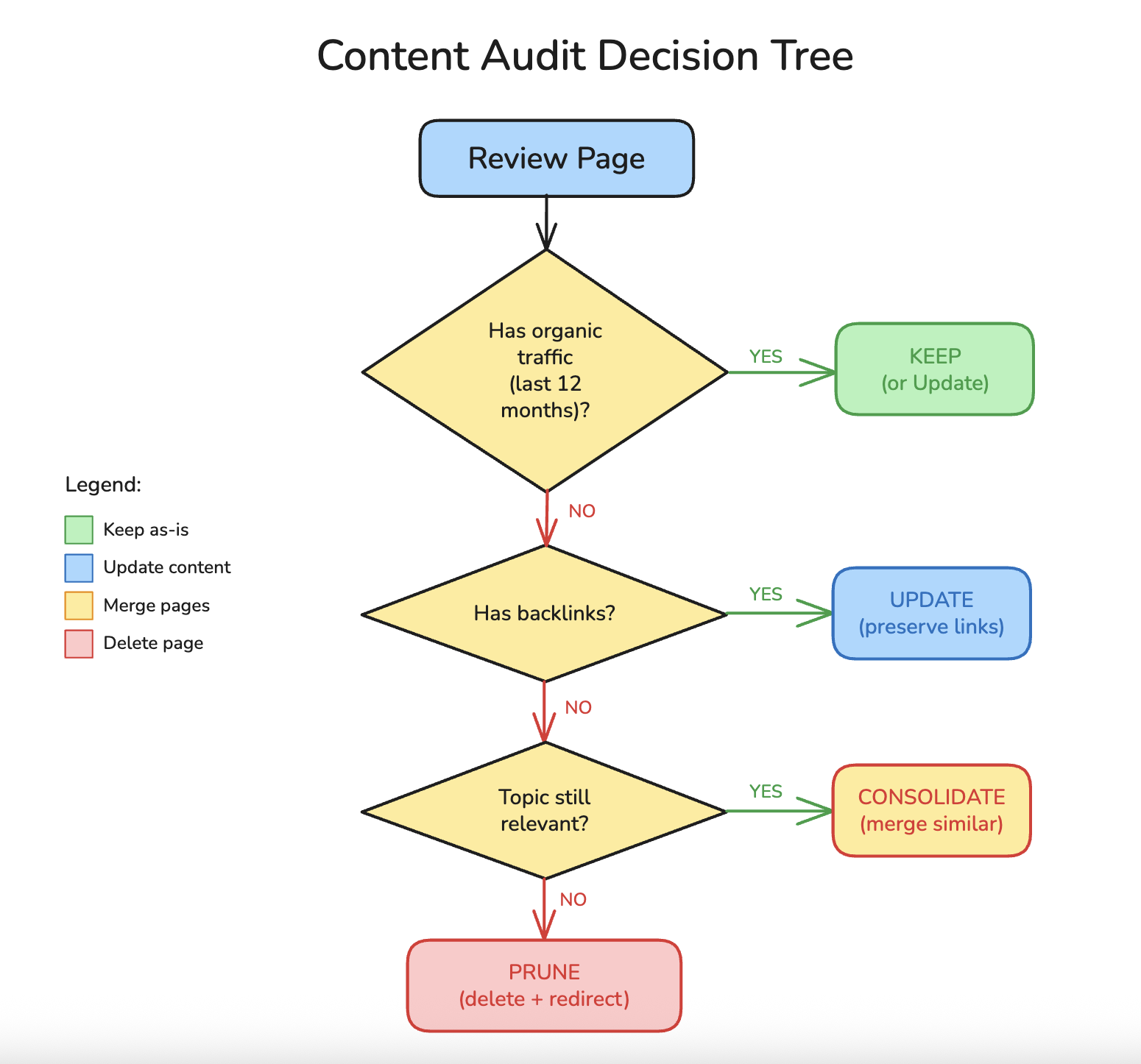
When to Prune vs. When to Update
This is where most people get stuck. Deleting content feels risky. What if that page was about to take off? What if you lose backlinks?
Here's the decision framework I use:
Prune When:
- Zero traffic AND zero backlinks: Nothing to lose. Delete it.
- Topic is irrelevant: If you no longer serve that audience or offer that service, the content has no business purpose.
- Content quality is unfixable: Some posts are so thin or poorly written that updating them would require a complete rewrite. Start fresh instead.
- Duplicate content exists: If you have a better page on the same topic, redirect the weaker one.
Update When:
- Page has backlinks: Even if traffic is low, backlinks have value. Update the content rather than losing those links.
- Topic is still relevant: If customers still search for this information, the page has potential.
- Page once performed well: Check historical data. If a page used to get traffic and declined, an update can often revive it.
- Quick win opportunity: Pages ranking on positions 8-20 often need only minor updates to reach page one.
Consolidate When:
- Multiple pages target the same keyword: Merge them into one comprehensive resource.
- You have a topic cluster problem: Several short posts could become one authoritative guide.
- Content cannibalization is happening: Check if your pages are competing against each other for the same queries.
| Scenario | Traffic | Backlinks | Action |
|---|---|---|---|
| New post, no traction yet | Low | None | Wait 6+ months before deciding |
| Old post, never performed | Zero | None | Prune |
| Old post, has backlinks | Low | Yes | Update |
| Multiple posts, same topic | Split | Split | Consolidate |
| Outdated but once popular | Declining | Yes | Update urgently |
How to Prune Content Safely
Deleting pages incorrectly can hurt your SEO. Here's the safe process:
Step 1: Check for Backlinks
Before deleting any page, verify it doesn't have valuable backlinks. Use Ahrefs, Moz, or Google Search Console's Links report. If the page has backlinks from reputable sites, don't delete it. Either update the content or redirect it to a relevant page.
Step 2: Set Up Redirects
For any page you remove that has backlinks or ranks for any keywords, set up a 301 redirect to the most relevant remaining page. This transfers link equity and prevents 404 errors.
# Example in Rails routes.rb
get '/old-blog-post-url', to: redirect('/new-comprehensive-guide', status: 301)
Step 3: Update Internal Links
Search your site for any internal links pointing to pages you're removing. Update them to point to the new destination or remove them entirely.
Step 4: Remove from Sitemap
After deletion, ensure the URLs are removed from your XML sitemap. Submit the updated sitemap to Google Search Console.
Step 5: Monitor Results
Track these metrics for 8-12 weeks after pruning:
- Overall organic traffic
- Crawl stats in Google Search Console
- Rankings for your target keywords
- Indexed page count
Most sites see improvements within 4-6 weeks as Google recrawls and reassesses the site's quality.
The Content Refresh Playbook
For pages you decide to update rather than delete, here's how to refresh them effectively:
Quick Wins (30 Minutes or Less)
These updates can boost rankings with minimal effort:
- Update the publish date: Only after making substantive changes
- Refresh statistics: Replace old data with current figures
- Fix broken links: Remove or update any dead links
- Add a FAQ section: Answer related questions users might have
- Improve the meta description: Make it more compelling for clicks
Substantial Updates (1-2 Hours)
For pages with more potential:
- Expand thin sections: Add depth where the content is superficial
- Add new sections: Cover subtopics you missed originally
- Include fresh examples: Replace outdated screenshots and case studies
- Improve formatting: Add tables, bullet points, and subheadings for scannability
- Optimize for featured snippets: Structure content to answer questions directly
Complete Overhauls
Sometimes a page needs a full rewrite:
- Keep the URL to preserve any backlinks and age
- Completely replace the content with new, comprehensive material
- Update the title and meta description
- Add new images and examples
- Promote the updated content as if it were new
How to Measure Content Pruning Success
Pruning isn't a one-time event. It's an ongoing process that requires measurement and iteration.
Key Metrics to Track
| Metric | Where to Find It | What to Look For |
|---|---|---|
| Organic traffic | Google Analytics | Increase after pruning |
| Crawl stats | Search Console > Settings > Crawl stats | More efficient crawling |
| Indexed pages | Search Console > Pages | Decrease matches your pruning |
| Average position | Search Console > Performance | Improvement for key pages |
| Pages with traffic | Analytics segment | Higher percentage of pages earning visits |
Timeline for Results
- Week 1-2: Google recrawls affected pages
- Week 3-4: Index updates reflect your changes
- Week 5-8: Ranking changes become visible
- Week 8-12: Traffic impact becomes clear
Don't panic if traffic dips slightly in the first few weeks. This is normal as Google reassesses your site. The improvement typically follows.
Signs It's Working
You'll know content pruning is successful when:
- Fewer pages are driving more total traffic
- Your "quality ratio" (pages with traffic ÷ total pages) improves
- Rankings for your key pages improve
- Crawl efficiency increases (fewer crawl errors, faster discovery)
Content Pruning Mistakes to Avoid
I've seen these mistakes derail content pruning projects:
Mistake 1: Deleting Too Fast
The problem: Removing 200 pages at once can trigger algorithmic flags. Google might interpret massive sudden changes as a hack or quality issue.
The fix: Prune in batches of 20-50 pages per week. Monitor results between batches.
Mistake 2: Ignoring Redirects
The problem: Deleting pages without redirects creates 404 errors. This wastes crawl budget and loses any backlink value.
The fix: Always redirect deleted pages to relevant alternatives. If no relevant page exists, redirect to the parent category or blog index.
Mistake 3: Pruning Based on Gut Feeling
The problem: "I don't like this post" isn't a valid pruning criterion. You might delete a page that has potential or keep one that's actively hurting you.
The fix: Base every decision on data. Check traffic, backlinks, and rankings before deciding.
Mistake 4: Pruning New Content Too Early
The problem: New pages need time to rank. Deleting a 2-month-old post because it has no traffic is premature.
The fix: Wait at least 6-12 months before evaluating new content for pruning. Give Google time to discover and rank it.
Mistake 5: Never Pruning at All
The problem: Some sites never remove content because deletion feels risky. Their archives become bloated with outdated, thin, and irrelevant pages.
The fix: Schedule quarterly content audits. Make pruning a regular part of your content operations, not a one-time crisis response.
Building a Content Pruning Schedule
Content pruning works best as an ongoing practice, not a one-time project.
Quarterly: Quick Audit
Every three months, run a quick audit:
- Export pages with zero sessions in the last 90 days
- Review each for relevance and update potential
- Prune obvious candidates (zero traffic, zero links, irrelevant topics)
- Flag borderline cases for the annual review
Time required: 2-4 hours
Annually: Deep Audit
Once a year, conduct a comprehensive content audit:
- Review every page on your site
- Categorize as Keep, Update, Consolidate, or Prune
- Create an update schedule for pages worth refreshing
- Execute pruning in batches
- Document decisions for future reference
Time required: 1-2 days depending on site size
Ongoing: Quality Gates
Prevent future bloat with quality standards:
- Set minimum word counts for new content
- Require update reviews for posts older than 18 months
- Flag any new post covering topics you've already written about
- Track your quality ratio monthly
Frequently Asked Questions
Does content pruning hurt SEO?
Done correctly, no. Removing thin or underperforming content actually helps SEO by concentrating your site's authority on pages that deserve to rank. The risk comes from pruning too aggressively, deleting pages with backlinks without redirects, or removing content that's still relevant to your audience.
How many pages should I prune?
There's no magic number. Some sites prune 10% of their content, others prune 50% or more. The goal isn't to hit a percentage. It's to remove everything that isn't earning its place on your site. Let the data guide you.
How long until I see results from content pruning?
Expect 4-8 weeks for initial ranking changes and 8-12 weeks for traffic impact to stabilize. Google needs time to recrawl your site and reassess your overall quality. Monitor monthly, not daily.
Should I delete or noindex pages I want to remove?
For most cases, delete and redirect. Noindexing keeps the page on your server and still consumes crawl budget. Delete the page and set up a 301 redirect to a relevant alternative.
What if I regret deleting a page?
Keep backups of pruned content for at least 90 days. If you made a mistake, you can republish and set up a redirect from the old URL. The damage from a single wrong deletion is usually minimal and recoverable.
How do I know if thin content is hurting my site?
Check your Search Console for pages with high impressions but zero clicks. Look at your overall quality ratio (pages with traffic vs. total indexed pages). If less than 30% of your pages earn any organic traffic, thin content is likely dragging you down.
Stop Publishing. Start Pruning.
The sites winning at SEO aren't the ones publishing 10 blog posts per month. They're the ones ruthlessly focused on content quality over quantity.
Here's the truth: your old content is either an asset or a liability. Outdated pages, thin content, and duplicate articles don't just sit there harmlessly. They actively compete with your best content, waste Google's crawl budget, and dilute your site's authority.
Content pruning fixes this. By removing what doesn't work and improving what does, you concentrate your site's strength into fewer, better pages.
Your action plan for this week:
- Export your content inventory from Search Console
- Identify your zero-traffic pages from the last 12 months
- Check each for backlinks and relevance
- Prune your obvious candidates (no traffic, no links, no purpose)
- Schedule updates for pages worth saving
The best time to prune was a year ago. The second best time is now.
Use BrightKeyword to identify which keywords your remaining content should target, and build a focused strategy around pages that actually have a chance to rank.
Less content. Better content. More traffic.