
You Built a Beautiful Single-Page App. Google Sees a Blank Page.
Your React app loads instantly for users. The design is gorgeous, the UX is seamless. But when you check Google Search Console, your pages aren't indexed. When you search site:yourdomain.com, half your content is missing.
This is the JavaScript SEO problem. And I've seen it destroy organic traffic for companies that spent six figures on their web applications.
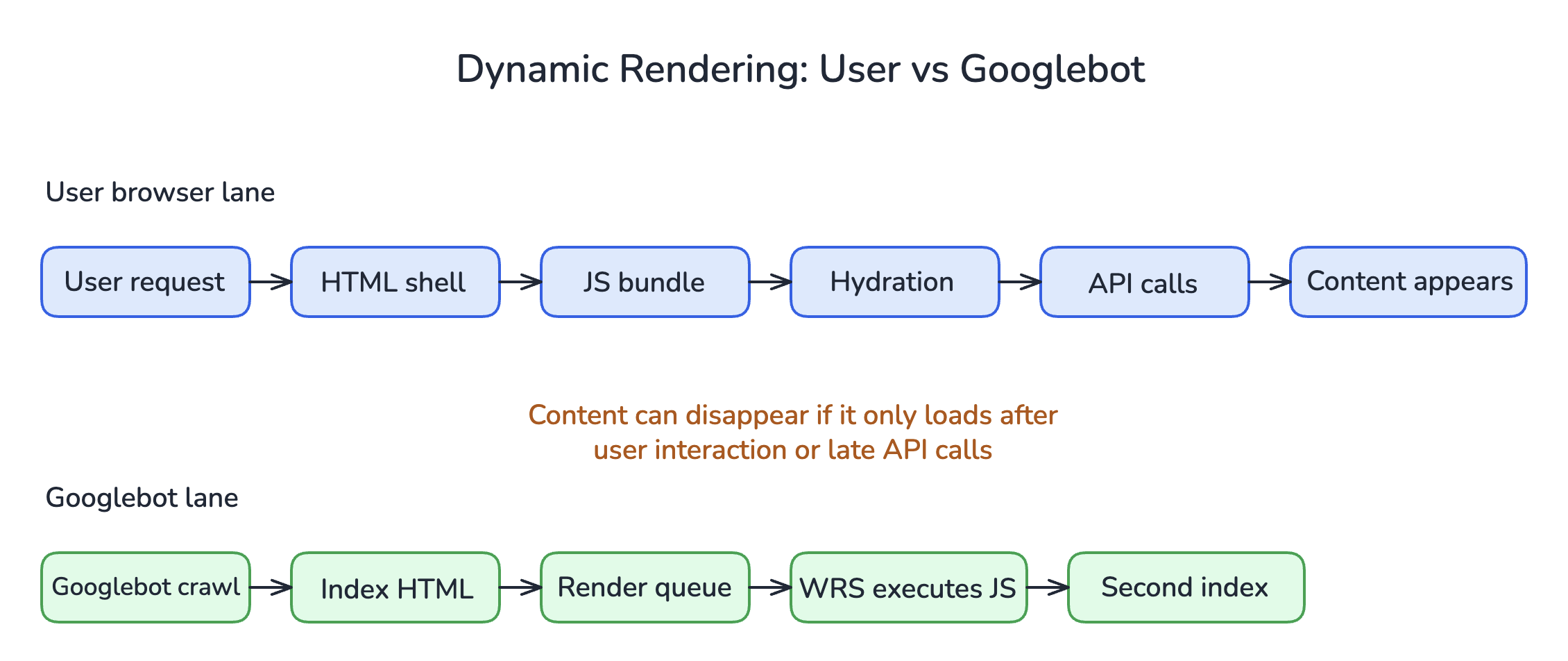
Here's what's happening: Googlebot visits your page, sees a JavaScript bundle, and has to decide whether to execute that code to see your content. Sometimes it does. Sometimes it doesn't. Sometimes it renders the page but misses critical content that loads after user interaction. The result? Your carefully crafted content never makes it into Google's index.
The good news: JavaScript SEO is a solved problem. The solutions exist, and once you understand how Google handles JavaScript, you can make your single-page apps, React sites, and dynamic content rank just as well as traditional HTML pages.
In this guide, you'll learn exactly how Google renders JavaScript, why your content might be invisible to search engines, and the specific fixes that work in 2026. No generic advice. Just the technical implementation that actually gets JavaScript content indexed.
Google can render JavaScript. But it won't wait forever, and it won't execute everything.
How Google Actually Renders JavaScript (The Two-Wave Process)
TL;DR: Google crawls and indexes in two waves. First, it sees your raw HTML. Later, it may render JavaScript. Content that only exists after JavaScript execution gets indexed slower, if at all.
Understanding Google's rendering pipeline is essential before you can fix JavaScript SEO issues.
The Crawl-Index-Render Pipeline
When Googlebot visits your page, it doesn't work like a user's browser. Here's what actually happens:
| Stage | What Happens | Timing |
|---|---|---|
| 1. Crawl | Googlebot fetches the raw HTML response | Immediate |
| 2. First Index | Google indexes content visible in raw HTML | Within hours/days |
| 3. Render Queue | Page enters queue for JavaScript rendering | Variable (hours to weeks) |
| 4. Render | Google's Web Rendering Service (WRS) executes JavaScript | When resources available |
| 5. Second Index | JavaScript-rendered content gets indexed | After rendering |
The problem? Steps 3-5 aren't guaranteed. Google's rendering resources are limited. If your page requires JavaScript to display any content, that content waits in a queue. For high-priority sites, the wait is short. For newer or lower-authority sites, it can take weeks.
What Google's Renderer Can (and Can't) Do
Google's Web Rendering Service runs a version of Chrome. As of 2026, it uses an evergreen (auto-updating) Chromium instance. This means it can handle modern JavaScript, including:
- ES6+ syntax
- React, Vue, Angular, and other frameworks
- Dynamic imports
- Most Web APIs
What it struggles with:
- Content that loads on user interaction (click, scroll, hover)
- Infinite scroll without proper pagination
- Content behind login walls
- Resources blocked by robots.txt (CSS, JS files)
- Very slow JavaScript execution (timeouts)
I've audited sites where the entire product catalog was invisible to Google because it only loaded when users scrolled. Thousands of pages, zero indexing. The fix took two days once we understood the problem.
How to See What Google Sees
Before you fix anything, confirm there's a problem. Here's how:
Google Search Console URL Inspection Tool: Enter a URL, click "Test Live URL," then view the rendered HTML. Compare what you see to your actual page content.
Google's Rich Results Test: Shows you the rendered HTML Google sees.
View Source vs. Inspect Element: In your browser, "View Source" shows raw HTML (what Googlebot sees first). "Inspect Element" shows the DOM after JavaScript execution.
If critical content appears in Inspect Element but not View Source, you have a JavaScript SEO problem.
View Source (what Googlebot sees first):
<!DOCTYPE html>
<html>
<head>
  <title>My App</title>
</head>
<body>
  <div id="root"></div>
  <script src="/static/js/bundle.js"></script>
</body>
</html>
Inspect Element (after JavaScript executes):
<!DOCTYPE html>
<html>
<head>
  <title>Product Name | My Store</title>
  <meta name="description" content="Buy Product Name...">
</head>
<body>
  <div id="root">
    <header>...navigation...</header>
    <main>
      <h1>Product Name</h1>
      <p>Product description with keywords...</p>
      <a href="/products/related">Related Products</a>
    </main>
  </div>
  <script src="/static/js/bundle.js"></script>
</body>
</html>
If your View Source looks like the first example, Google's initial crawl sees almost nothing.
The 6 JavaScript SEO Problems That Kill Your Rankings
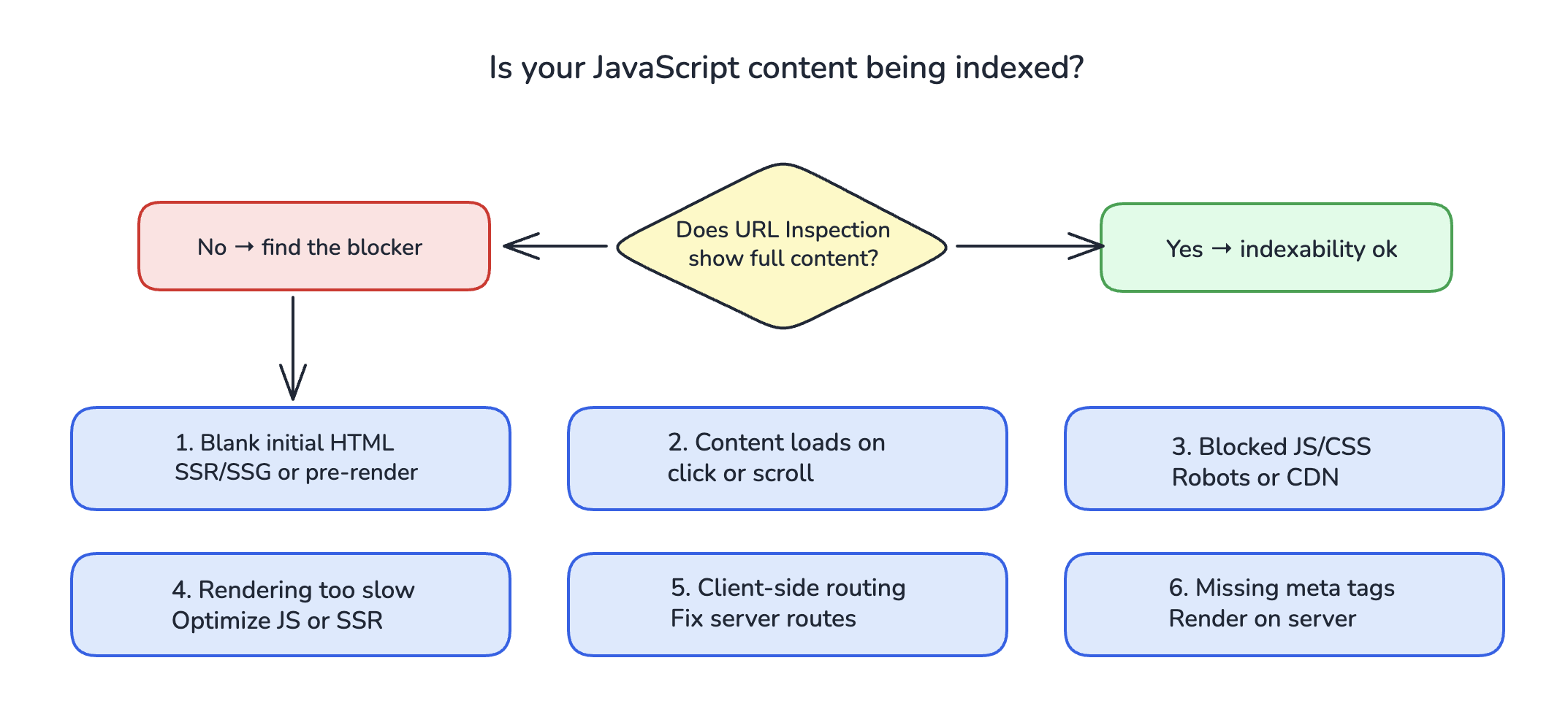
TL;DR: Most JavaScript SEO issues fall into six categories: blank initial HTML, content loaded on interaction, blocked resources, slow rendering, client-side-only routing, and missing meta tags. Each has a specific fix.
1. Blank or Minimal Initial HTML
The problem: Your server sends an HTML file with just a <div id="root"></div> and some script tags. All content renders client-side.
Why it matters: Google's first pass sees nothing. Even when rendering happens, any delay or error means zero content indexed.
Signs this is your issue:
- View Source shows almost no text content
- URL Inspection shows "Page is not indexed" or minimal content
- Googlebot can't find links to crawl to other pages
The fix: Server-side rendering (SSR), static site generation (SSG), or pre-rendering. More on these solutions below.
2. Content That Loads on User Interaction
The problem: Product details appear on click. Reviews load on scroll. Tabs hide content until selected.
Why it matters: Google's renderer doesn't click, scroll, or interact. If content requires user action, Google never sees it.
Signs this is your issue:
- Some content on your page is indexed, but interactive sections aren't
- Product pages missing specifications, reviews, or variant information
- FAQ sections with accordion UI not appearing in search
The fix: Load all indexable content in the initial render. Use CSS to hide/show rather than JavaScript to load/unload. Or implement server-side rendering that includes hidden content in the HTML.
3. Blocked JavaScript or CSS Resources
The problem: Your robots.txt blocks Googlebot from accessing critical JavaScript or CSS files.
Why it matters: If Google can't load your JS bundle, it can't render your page. If it can't load CSS, it might misunderstand your page layout.
Signs this is your issue:
- URL Inspection shows rendering errors
- Page looks broken in Google's rendered preview
- Robots.txt has broad Disallow rules
The fix: Audit your robots.txt. Remove blocks on JavaScript, CSS, and image resources. Check third-party scripts too, as CDN-hosted resources can also be blocked.
4. JavaScript Rendering Takes Too Long
The problem: Your JavaScript is complex, makes many API calls, or has render-blocking operations. Google's renderer times out before seeing your content.
Why it matters: Google doesn't wait indefinitely. Slow JavaScript means incomplete rendering.
Signs this is your issue:
- Page works fine for users but URL Inspection shows incomplete content
- Lighthouse scores show long Time to Interactive
- Page makes dozens of API calls before displaying content
The fix: Optimize JavaScript performance. Reduce bundle size. Use code splitting. Prioritize above-the-fold content. Consider SSR for content-heavy pages. For related performance optimizations, see our guide on what to do when Google crawls but doesn't index your pages.
5. Client-Side-Only Routing
The problem: Your single-page app handles all navigation client-side. Direct URL access returns a 404 or redirects to the homepage.
Why it matters: Googlebot accesses each URL directly. If /products/widget redirects to / without server configuration, Google can't index your product pages.
Signs this is your issue:
- Direct URL access shows wrong content or errors
- Server returns 404 for valid client-side routes
- Google indexes only your homepage
The fix: Configure your server to return the same HTML shell for all valid routes (the "catch-all" approach), or implement server-side rendering. Ensure each URL returns a 200 status with appropriate content.
6. Missing or Dynamic Meta Tags
The problem: Title tags, meta descriptions, and canonical tags only exist after JavaScript executes.
Why it matters: Google reads meta tags during the first crawl pass. If they're not in the raw HTML, Google uses whatever it finds (often nothing useful).
Signs this is your issue:
- Search results show wrong titles or descriptions
- Google Search Console shows duplicate titles or missing meta
- View Source shows generic or placeholder meta tags
The fix: Generate meta tags server-side for every page. Use SSR, SSG, or a pre-rendering solution that injects correct meta tags into the HTML response.
JavaScript SEO Solutions: SSR, SSG, and Pre-Rendering Compared
TL;DR: Server-side rendering (SSR) renders on each request, static site generation (SSG) renders at build time, and pre-rendering generates HTML snapshots for bots. Choose based on your content's dynamism and update frequency.
There's no single "best" solution. Each approach has tradeoffs. Here's how to choose.
Server-Side Rendering (SSR)
How it works: Your server executes JavaScript and sends fully-rendered HTML to every request. The browser receives complete content, then "hydrates" it with JavaScript for interactivity.
Best for:
- Content that changes frequently (e-commerce inventory, news)
- Personalized content that varies by user
- Large sites where build-time generation is impractical
Pros:
- Always fresh content
- Full HTML visible to all crawlers
- Works for dynamic content
Cons:
- Increased server load
- Slower Time to First Byte (TTFB)
- More complex infrastructure
Popular frameworks: Next.js (React), Nuxt (Vue), Angular Universal
Static Site Generation (SSG)
How it works: HTML is generated at build time. Every page becomes a static file. Optionally, you can use Incremental Static Regeneration (ISR) to rebuild pages on a schedule.
Best for:
- Blogs, documentation, marketing sites
- Content that changes infrequently
- Sites where build times are manageable
Pros:
- Fastest possible page loads
- Simple hosting (any CDN works)
- Excellent Core Web Vitals
Cons:
- Stale content between builds
- Long build times for large sites
- Can't handle real-time personalization
Popular frameworks: Next.js, Gatsby, Astro, Hugo, 11ty
Pre-Rendering (Dynamic Rendering)
How it works: A service detects bot requests and serves pre-rendered HTML snapshots. Regular users get the normal JavaScript-powered version.
Best for:
- Legacy apps that can't be rebuilt
- Sites with complex JavaScript that's hard to refactor
- Quick fixes while implementing a proper solution
Pros:
- No changes to existing codebase
- Works with any framework
- Fast implementation
Cons:
- Maintaining two versions of your site
- Bot detection can fail
- Google has said they prefer the same content for users and bots
Popular tools: Prerender.io, Rendertron, Puppeteer-based solutions
Comparison Table
| Factor | SSR | SSG | Pre-Rendering |
|---|---|---|---|
| Best for | Dynamic content | Static content | Legacy apps |
| SEO reliability | Excellent | Excellent | Good |
| Performance | Good | Excellent | Depends |
| Server load | Higher | Minimal | Moderate |
| Content freshness | Real-time | Build-time | Snapshot-based |
| Implementation effort | Medium-High | Medium | Low |
| Maintenance | Framework updates | Build pipeline | Bot detection |
Which Should You Choose?
Use SSR if:
- Your content changes multiple times per day
- You have user-generated or personalized content
- You're building a new project with Next.js or similar
Use SSG if:
- Your content updates weekly or less
- You have fewer than 10,000 pages (or good incremental builds)
- Performance is your top priority
Use Pre-Rendering if:
- You have a legacy SPA you can't rebuild
- You need a fix in days, not months
- You're okay with the tradeoffs
My recommendation for most sites in 2026: Start with SSG using ISR. It gives you the performance benefits of static sites with the ability to update content without full rebuilds. If your content needs real-time updates, move critical pages to SSR.
Step-by-Step: Making Your JavaScript Site SEO-Friendly
TL;DR: Audit your current state, choose a rendering strategy, implement it, then verify with Google's tools. The process takes days to weeks depending on your starting point.
Step 1: Audit Your Current JavaScript SEO Status
Before changing anything, understand your baseline.
Check indexing status:
1. Go to Google Search Console
2. Check the Pages report for excluded URLs
3. Note pages marked "Discovered - currently not indexed" or "Crawled - currently not indexed"
Test key pages:
1. Use URL Inspection on your most important pages
2. Click "Test Live URL" and view the rendered HTML
3. Compare to what users see
Check raw HTML:
1. View Source on representative pages
2. Look for: title tags, meta descriptions, main content, internal links
3. If any are missing, you have work to do
Run a Lighthouse audit:
1. Open Chrome DevTools on your page
2. Go to the Lighthouse tab
3. Run an SEO audit
4. Note any JavaScript-related issues
For more on diagnosing indexing problems, see our guide on why pages get discovered but not indexed.
Step 2: Implement Your Chosen Solution
For Next.js (SSR/SSG/ISR):
The simplest path for React apps. Next.js handles the complexity.
// For static pages (SSG)
export async function getStaticProps() {
  const data = await fetchData();
  return { props: { data } };
}

// For dynamic pages (SSR)
export async function getServerSideProps(context) {
  const data = await fetchData(context.params.id);
  return { props: { data } };
}

// For ISR (regenerate every 60 seconds)
export async function getStaticProps() {
  const data = await fetchData();
  return {
    props: { data },
    revalidate: 60
  };
}
For existing SPAs (Pre-Rendering):
If you can't rebuild, add a pre-rendering service:
- Sign up for Prerender.io or similar service
- Add their middleware to your server
- Configure bot detection
- Test with Google's URL Inspection tool
For Vue/Nuxt:
Nuxt 3 provides similar capabilities to Next.js:
// Server-side data fetching
const { data } = await useFetch('/api/data');

// Or use useAsyncData for more control
const { data } = await useAsyncData('key', () => $fetch('/api/data'));
Step 3: Handle Meta Tags Correctly
Every page needs unique, server-rendered meta tags.
In Next.js:
import Head from 'next/head';
export default function ProductPage({ product }) {
  return (
    <>
      <Head>
        <title>{product.name} | Your Store</title>
        <meta name="description" content={product.description} />
        <link rel="canonical" href={`https://yoursite.com/products/${product.slug}`} />
      </Head>
      {/* Page content */}
    </>
  );
}
Critical meta tags to include:
- <title> with unique, descriptive content
- <meta name="description"> for search snippets
- <link rel="canonical"> to prevent duplicates (if Google picks a different URL than you expect, see Google chose a different canonical)
- Open Graph tags for social sharing
- Structured data for rich results
Step 4: Ensure Internal Links Are Crawlable
JavaScript frameworks often use client-side navigation that Google can't follow.
Do this:
<a href="/products/widget">Widget</a>Not this:
<span onClick={() => navigate('/products/widget')}>Widget</span>Google needs actual <a> tags with href attributes in the raw HTML. Client-side navigation can enhance the experience, but the links must exist as standard HTML.
Step 5: Optimize JavaScript Performance
Slow JavaScript hurts both users and SEO. Google's renderer has timeouts.
Quick wins:
- Code split by route (load only what's needed)
- Lazy load below-the-fold content
- Compress and minify JavaScript bundles
- Use tree shaking to remove unused code
- Defer non-critical scripts
Monitor with:
- Lighthouse performance audits
- Web Vitals metrics in Search Console
- Real User Monitoring (RUM) tools
Step 6: Verify and Monitor
After implementation, confirm it's working:
- Retest in URL Inspection: Does Google now see full content?
- Request indexing: For key pages you've fixed
- Monitor Search Console: Watch for indexing improvements over 2-4 weeks
- Check rankings: Did previously-invisible pages start appearing?
Set up ongoing monitoring. JavaScript updates can break SEO without warning. A deployment that changes how content loads could undo all your work.
Tools for Testing and Monitoring JavaScript SEO
TL;DR: Google Search Console is essential. Supplement with Lighthouse, Chrome DevTools, and third-party crawlers for complete coverage.
Essential Tools (Free)
Google Search Console
- URL Inspection: See exactly what Google renders
- Index Coverage: Track which pages are indexed
- Core Web Vitals: Monitor performance metrics
Google Rich Results Test
- Shows rendered HTML
- Tests structured data
- Identifies rendering issues
Lighthouse (Chrome DevTools)
- SEO audit section
- Performance metrics
- Accessibility checks
Chrome DevTools
- View Source for raw HTML
- Network tab for resource loading
- Performance tab for JavaScript profiling
Third-Party Tools
| Tool | Best For | Price |
|---|---|---|
| Screaming Frog | JavaScript rendering crawls | Free (500 URLs) / $259/year |
| Sitebulb | Visual JavaScript rendering audits | $35-$100/month |
| OnCrawl | Large-scale JavaScript crawling | Enterprise pricing |
| Merkle Technical SEO Tools | Free mobile rendering test | Free |
Setting Up Automated Monitoring
Don't wait for traffic drops to discover JavaScript SEO problems.
Weekly checks:
- Review Index Coverage in Search Console
- Check for new "Crawled - currently not indexed" pages
- Run Lighthouse on key templates
After deployments:
- Test representative pages in URL Inspection
- Verify meta tags render correctly
- Check that internal links are still crawlable
Frequently Asked Questions
What is JavaScript SEO?
JavaScript SEO is the practice of making JavaScript-powered websites visible and indexable by search engines. It involves ensuring that content rendered by JavaScript is accessible to search engine crawlers, which historically struggled with JavaScript-heavy pages. The goal is to get your single-page apps, React sites, and dynamic content indexed just like traditional HTML pages.
Can Google render JavaScript?
Yes, Google can render JavaScript. Google's Web Rendering Service uses an evergreen version of Chromium to execute JavaScript and render pages. However, rendering happens in a separate queue after initial crawling, which can delay indexing. Not all JavaScript executes successfully, and content that requires user interaction won't be rendered.
Why is my React or Vue app not being indexed?
Common reasons include: content only visible after JavaScript execution (blank initial HTML), content that loads on user interaction, blocked JavaScript resources, slow rendering that times out, client-side-only routing that returns 404s for direct URL access, or meta tags that only exist after JavaScript runs. Use Google's URL Inspection tool to see exactly what Google sees.
What's the difference between SSR, SSG, and CSR?
Client-Side Rendering (CSR) executes JavaScript in the browser, starting with minimal HTML. Server-Side Rendering (SSR) executes JavaScript on the server, sending complete HTML on each request. Static Site Generation (SSG) pre-renders pages at build time into static HTML files. SSR and SSG are better for SEO because they provide complete HTML to crawlers immediately.
Does Google wait for JavaScript to load?
Google's renderer will wait for JavaScript to execute, but it has limits. Very slow JavaScript may time out. Content that loads only after user interaction (clicks, scrolls) won't be seen because the renderer doesn't interact with pages. The exact timeout isn't published, but optimizing for fast initial render is essential.
Should I use pre-rendering or server-side rendering?
SSR is generally preferred because it serves the same content to users and bots. Pre-rendering (serving different content to bots) works but has drawbacks: maintaining two versions, potential for drift between versions, and Google's stated preference for consistent content. Use pre-rendering as a temporary solution for legacy apps while implementing proper SSR or SSG.
How do I test if Google can see my JavaScript content?
Use Google Search Console's URL Inspection tool. Enter your URL, click "Test Live URL," then view the rendered HTML screenshot and source. Compare this to what users see in their browser. If content is missing from Google's rendered view, you have a JavaScript SEO problem to fix.
JavaScript SEO Is a Solved Problem. You Just Have to Implement the Solution.
Your beautiful single-page app doesn't have to be invisible to Google. The tools and techniques exist. It's a matter of implementation.
Here's your action plan:
Audit your current state. Use URL Inspection to see what Google actually sees on your key pages. If critical content is missing, you have work to do.
Choose your rendering strategy. SSG with ISR for most content, SSR for highly dynamic pages, pre-rendering only as a stopgap for legacy apps.
Fix the fundamentals. Server-render your meta tags. Make internal links crawlable HTML. Don't hide content behind user interactions.
Optimize performance. Slow JavaScript is bad for users and bad for SEO. Code split, lazy load, and keep your bundles lean.
Monitor continuously. JavaScript SEO can break silently. Set up regular checks so you catch problems before they tank your traffic.
The sites that succeed with JavaScript SEO are the ones that treat it as a technical requirement, not an afterthought. Build rendering into your architecture from the start, and Google will index your JavaScript content just as reliably as static HTML.
Google can render JavaScript. Your job is to make sure it's worth rendering.